
The irlmap.live app
Your phone’s GPS on your stream, with the screen off and other apps open. Log in with Twitch and tap Start.
Why an app
The phone page in the browser works without installing anything, but phones pause web pages in the background. The app keeps sending with the screen locked, the camera open or your streaming app in front, which is how most IRL streams actually run.
What it does
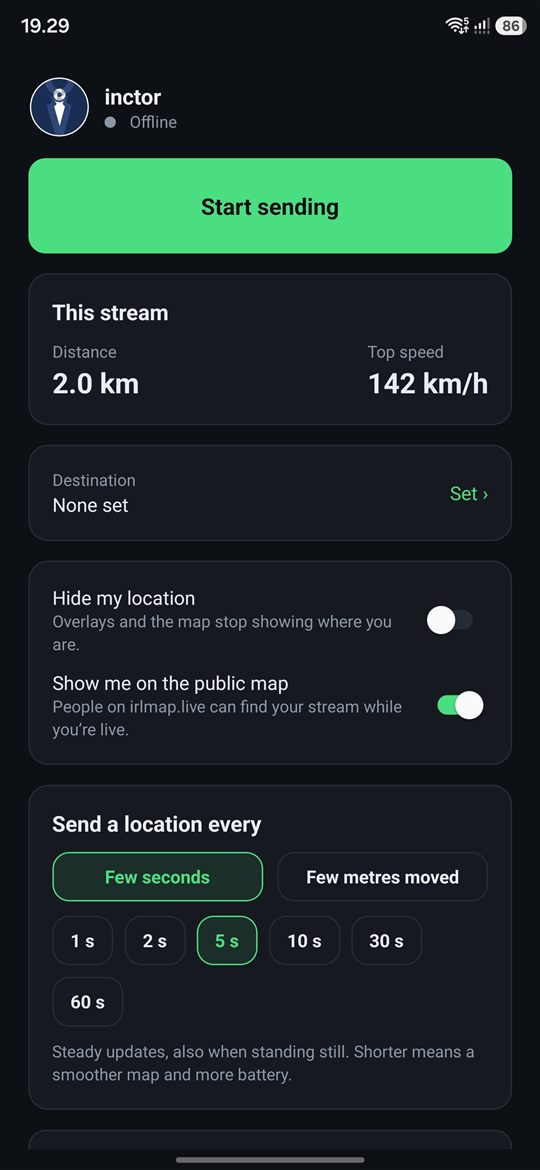
- Sends in the background while you stream. A notification shows whenever it’s on, and Stop ends it.
- Your choice of how often: every 1 to 60 seconds, or every 5 to 250 metres moved to save battery.
- Keeps working through dead spots: locations are queued when you lose signal and sent when you’re back.
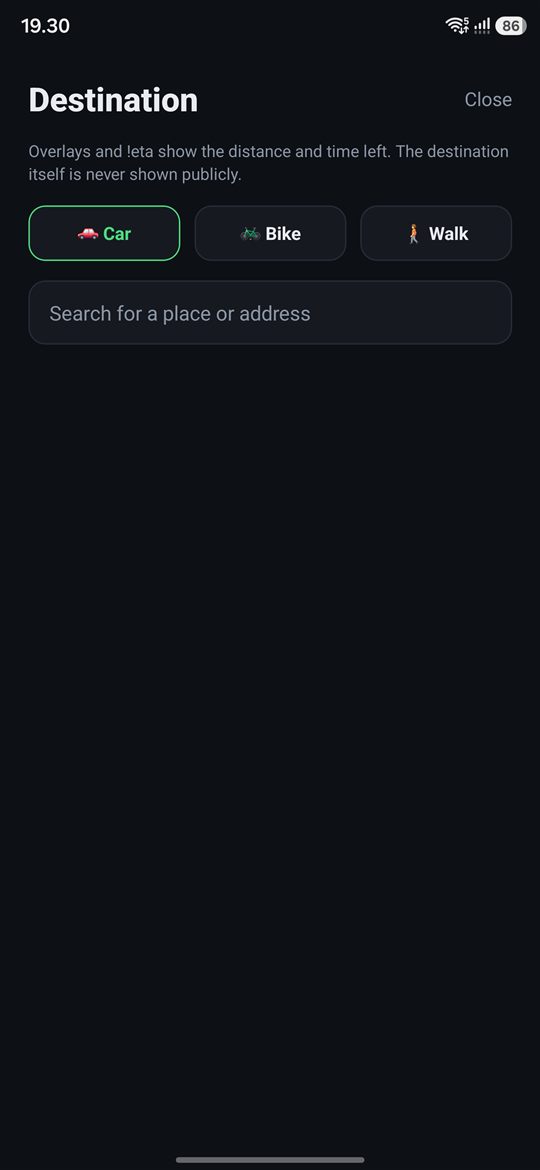
- Set a destination from your phone for the ETA overlay and
!eta. - Hide your location with one tap, and switch the public map on or off.
- Shows whether you’re live and when the last location went through.
Everything else, like overlays, dead zones, stream delay and chat commands, is set up here on the website and applies to the app straight away. It’s the same account.
Getting started
- Install irlmap.live from Google Play.
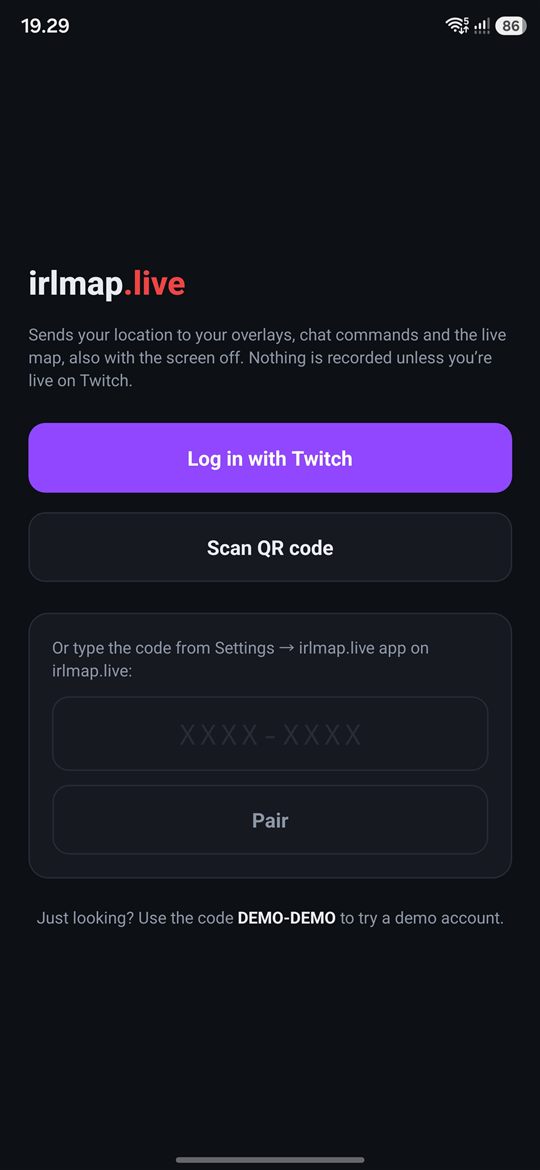
- Tap Log in with Twitch. Or, if you’re already logged in on your computer, open Settings → irlmap.live app, tap Pair a phone and scan the QR code with the app.
- Tap Start sending and allow location all the time, so it keeps going with the screen off.
- Go live. Nothing is recorded while you’re offline, so you can start it before your stream.
Privacy
The app only sends while you’ve tapped Start, and irlmap.live only keeps locations while you’re live on Twitch. Your dead zones, pause and stream delay apply to everything viewers see. You can remove the app’s access any time under Settings on the website. More in the privacy policy, and how to delete your data.
Try it on your next stream
Free, and it takes about five minutes to set up.